User Guide
For anyone who’s been given an account on a structured_log server and
signs in to the admin client to read, search or manage logs. If you’re
deploying or configuring the server itself, see the
Administrator / DevOps Guide instead; if you’re
sending logs into the system from your own application, see the
Developer Guide.
Every screenshot below is a real screen from a running server — a small
demo workspace (a “Payments Platform” group with an orders-api
project, an owner and a read-only user), not mockups.
What you’re looking at
Section titled “What you’re looking at”The admin client is a web app: one page, served by your organization at
some URL an administrator gave you (for example
https://logs.example.com). Everything in this guide happens there — no
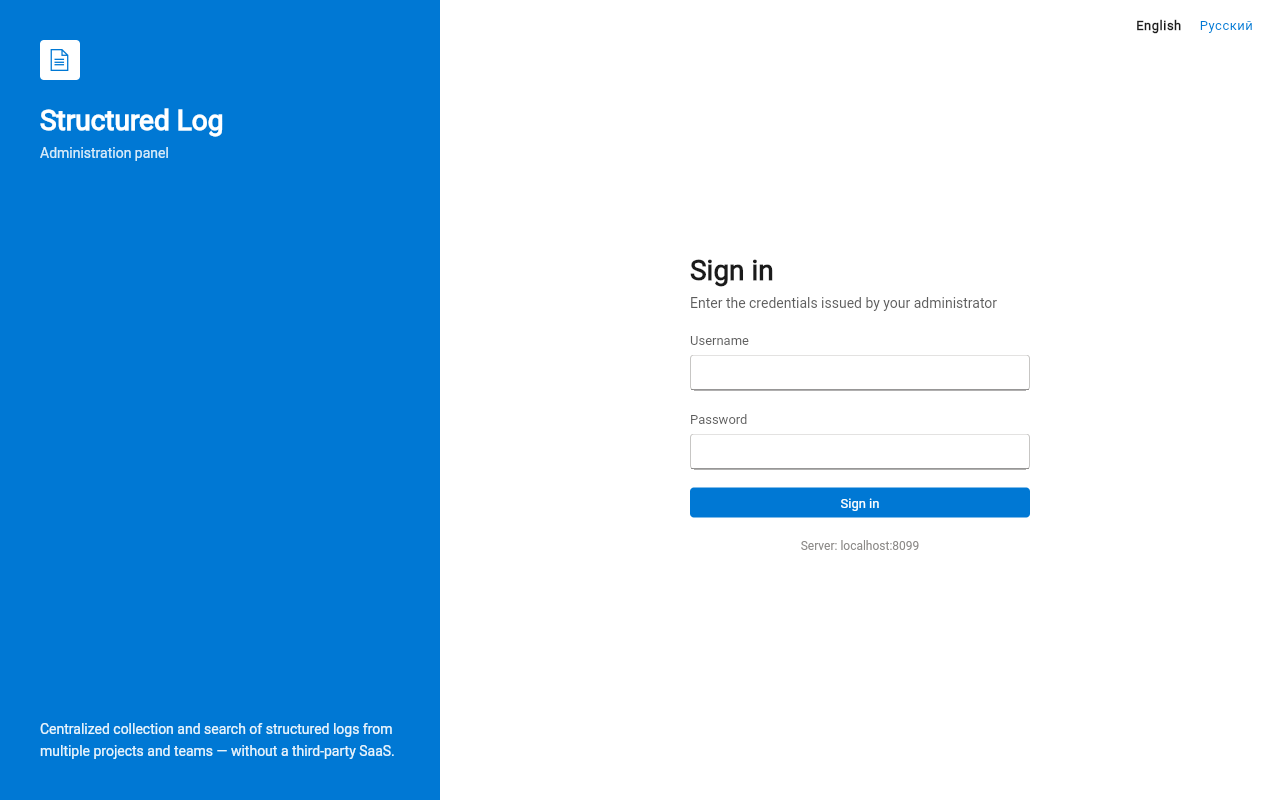
separate desktop app, no command line. The server address is shown in
small print under the sign-in form, so you can confirm you’re pointed at
the right one before typing a password into it.
Signing in
Section titled “Signing in”You don’t sign yourself up — there’s no “create account” link, because
this system doesn’t offer self-registration. An administrator (or, for
your own group, an owner) creates your account and gives you a
username and a temporary password out of band (chat, a password
manager, however your organization shares secrets).
- Enter the username and temporary password you were given.
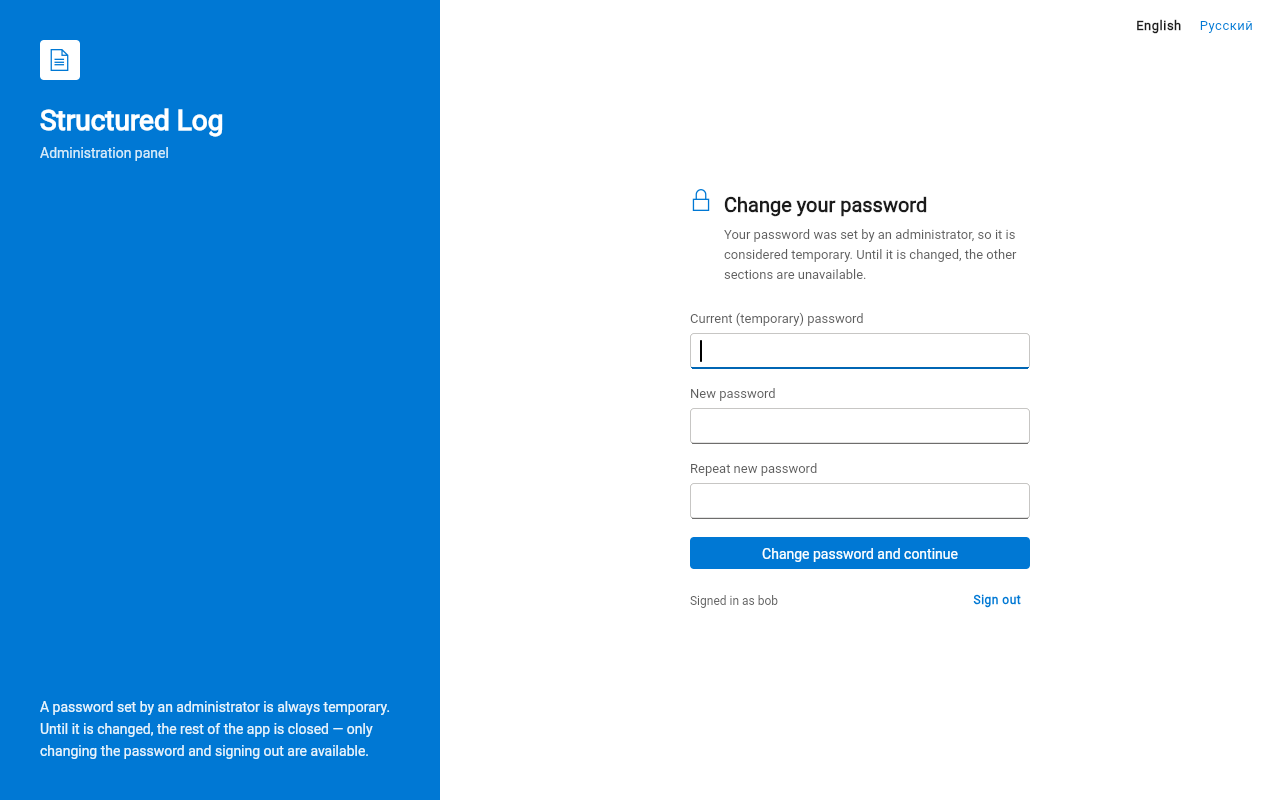
- The app immediately asks you to set a real password — this isn’t optional. Until you do, nothing else in the app works: every screen redirects you back to this one. It’s a one-time step, not something you’ll see again unless an administrator resets your password later (same gate, same reason).
- Pick a password 8–72 characters long. There’s no other rule — no forced mix of symbols, numbers, or cases.
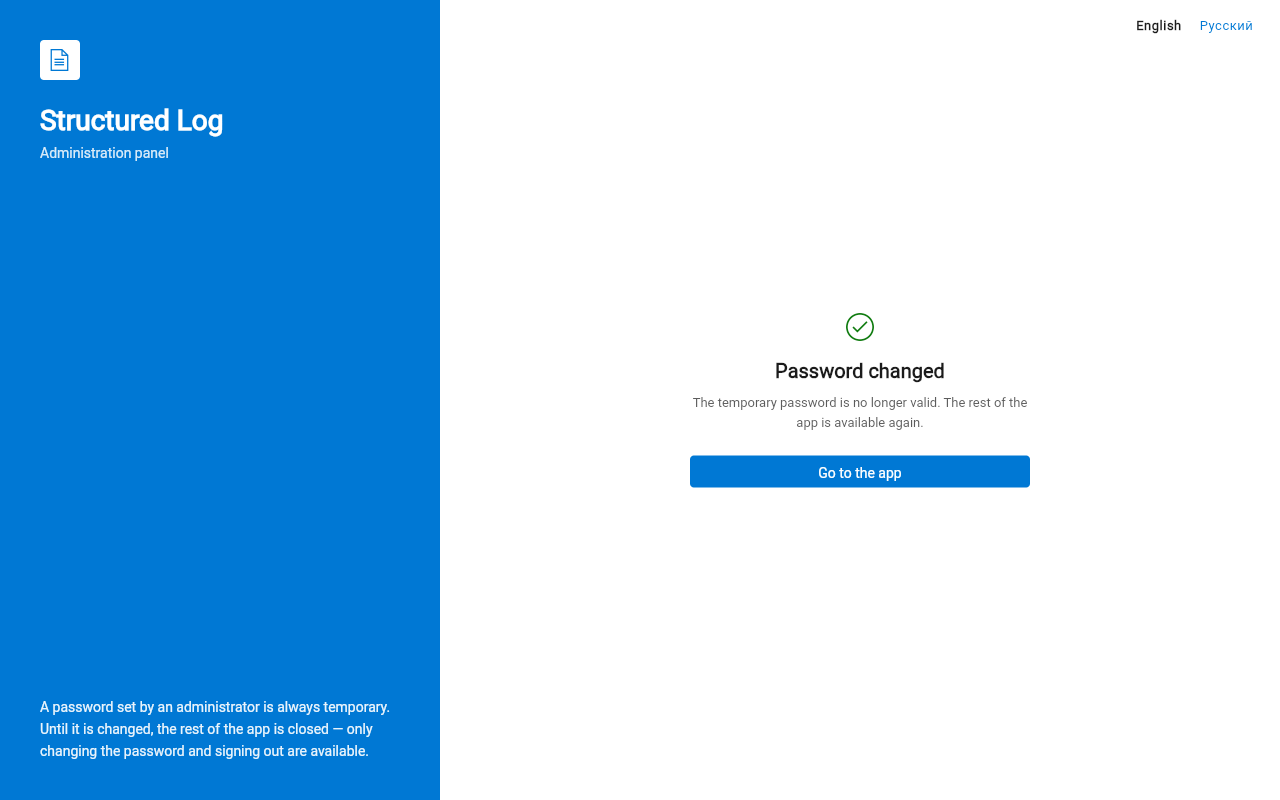
Once you’ve changed it, the app confirms and lets you in — from here on, the temporary password no longer works.
Once you’re through, the app remembers you (a session that renews itself quietly in the background) until you sign out, until an administrator revokes your access, or until you haven’t used the app in a long while.
If your session ends unexpectedly — a banner reading “Session ended — sign in again” — this isn’t necessarily something you did wrong. It happens when an administrator changed your access, changed your password on your behalf, or blocked/unblocked you while you were signed in; the app enforces changes to your access immediately, not on your next scheduled check-in. Sign in again and you’re back where you left off.
What your role lets you do
Section titled “What your role lets you do”Access is granted per group or per individual project, and it comes in three levels. An administrator (or, for a group, its owner) decides what you’re granted — this isn’t something you configure yourself:
| Role | What it means for you |
|---|---|
user |
Read-only. You can search and live-tail logs in the groups/projects you’ve been granted access to. You cannot create, edit, or delete anything, and you cannot see the audit log. |
owner (of a group) |
Everything user can do, plus:- Create and manage projects and teams inside that group - Edit their storage quotas - Create/revoke their secret keys - Grant owner/user roles to others within that same groupStill can’t grant admin, block/unblock accounts, or read the audit log — those stay administrator-only. |
admin |
Full access everywhere: - Every group, every project - User management - Role grants of any kind (including admin itself)- The audit log |
The app itself reflects this: an action you’re not allowed to take is simply not shown, rather than shown and then refused. If a navigation item (Users, Audit, the “Create group” button, …) isn’t in your sidebar, it’s because your role doesn’t reach it — not a bug.
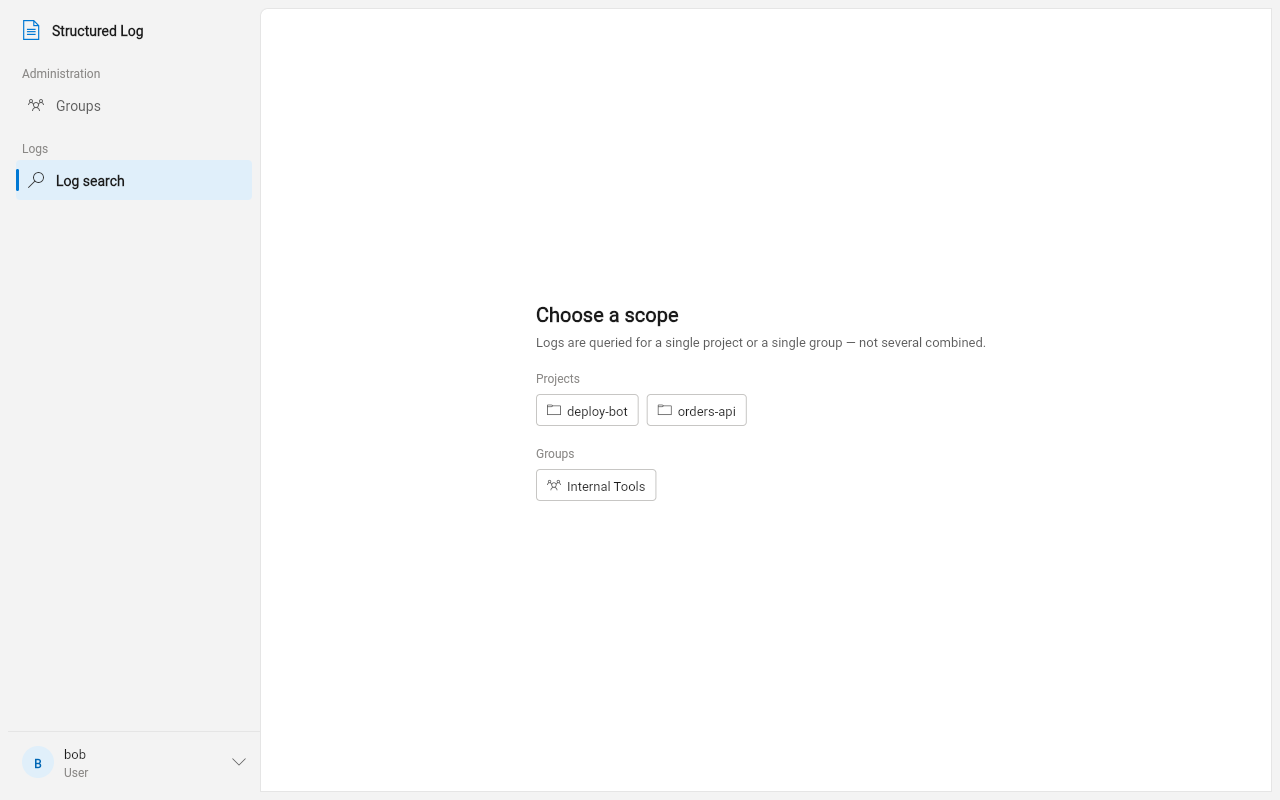
A grant on a project doesn’t automatically cover its parent group, and
the reverse holds too, one level down: a grant on a group does cover
every project inside it, but you won’t see that group itself unless you
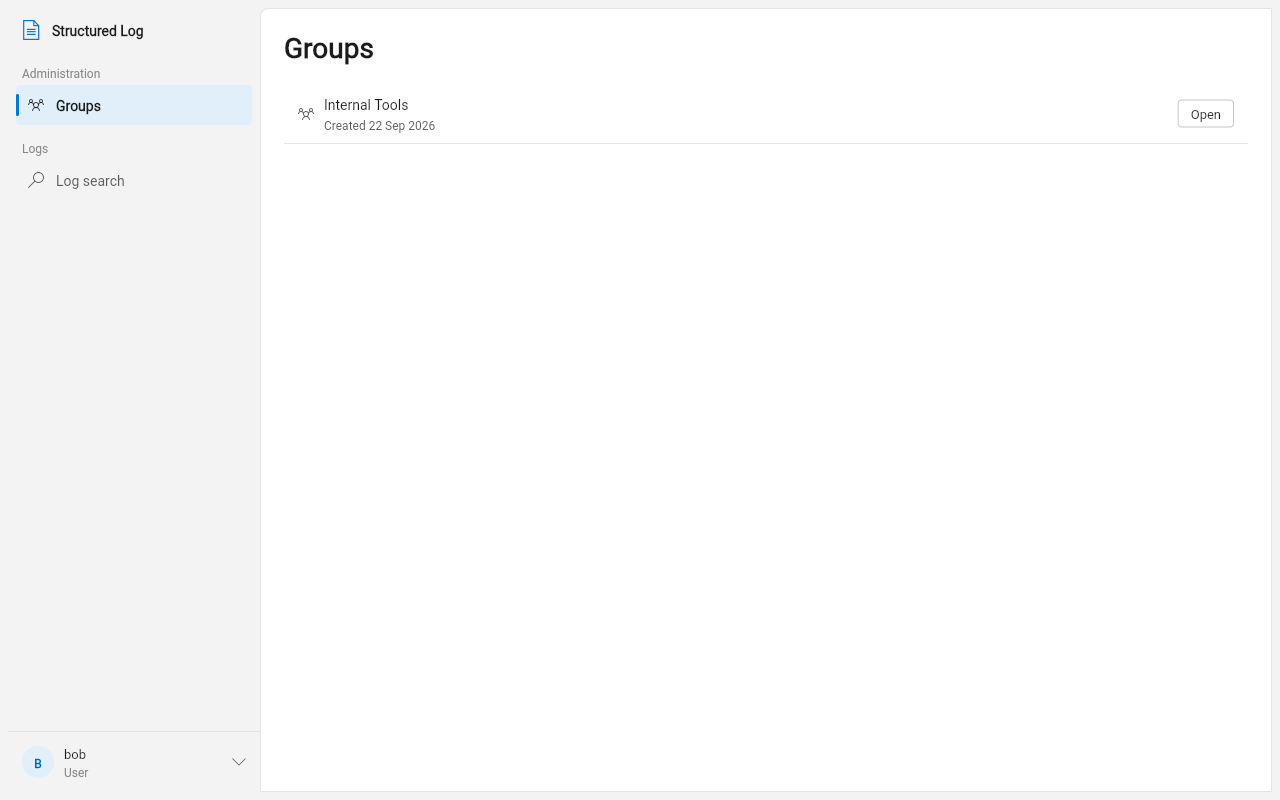
were granted access to the group directly. Below is exactly what a
user with one project-level grant (on orders-api) and one
group-level grant (on Internal Tools) sees after signing in — only
Internal Tools appears under Groups, and only the two nav sections a
read-only role reaches (Administration — see
Finding your way around below — is reduced
to Groups; there’s no Users or Audit):
Finding your way around
Section titled “Finding your way around”The left-hand navigation is grouped by what it’s for:
- Overview — Dashboard (
adminonly): a quick landing view of every group on the server and a handful of its projects, for jumping straight into one rather than searching for it. - Administration (visible only if your role reaches it) — Groups, Users, Audit.
- Logs — Search logs, the log browser covered below.
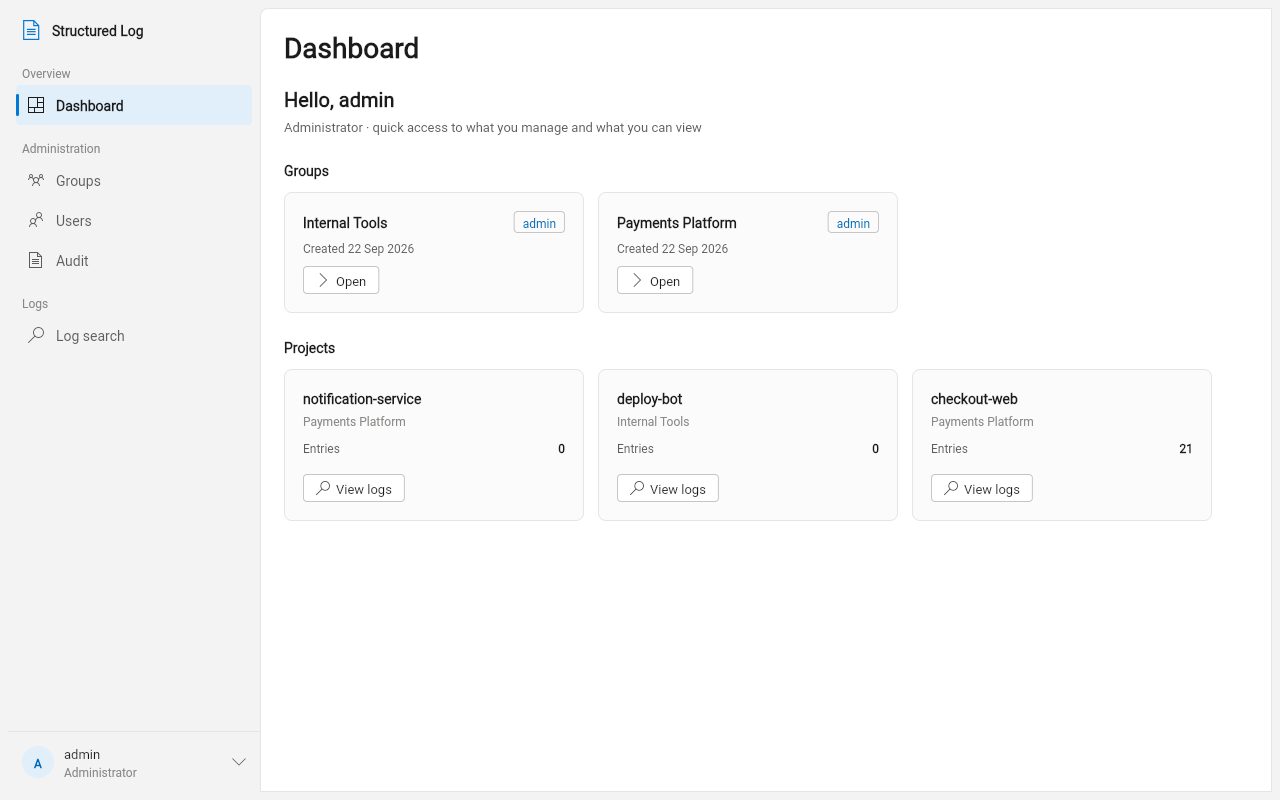
Your account menu is in the bottom-left corner (your username), with sign-out and account settings under it.
Searching and reading logs
Section titled “Searching and reading logs”Open Search logs and you’ll first be asked to pick a scope: one project, or one group (which searches across every project in it). The list only offers what you actually have access to — a project reached through a direct grant, or through a group grant that covers it. You can’t search across an arbitrary mix of projects — pick the narrowest scope that covers what you’re looking for.
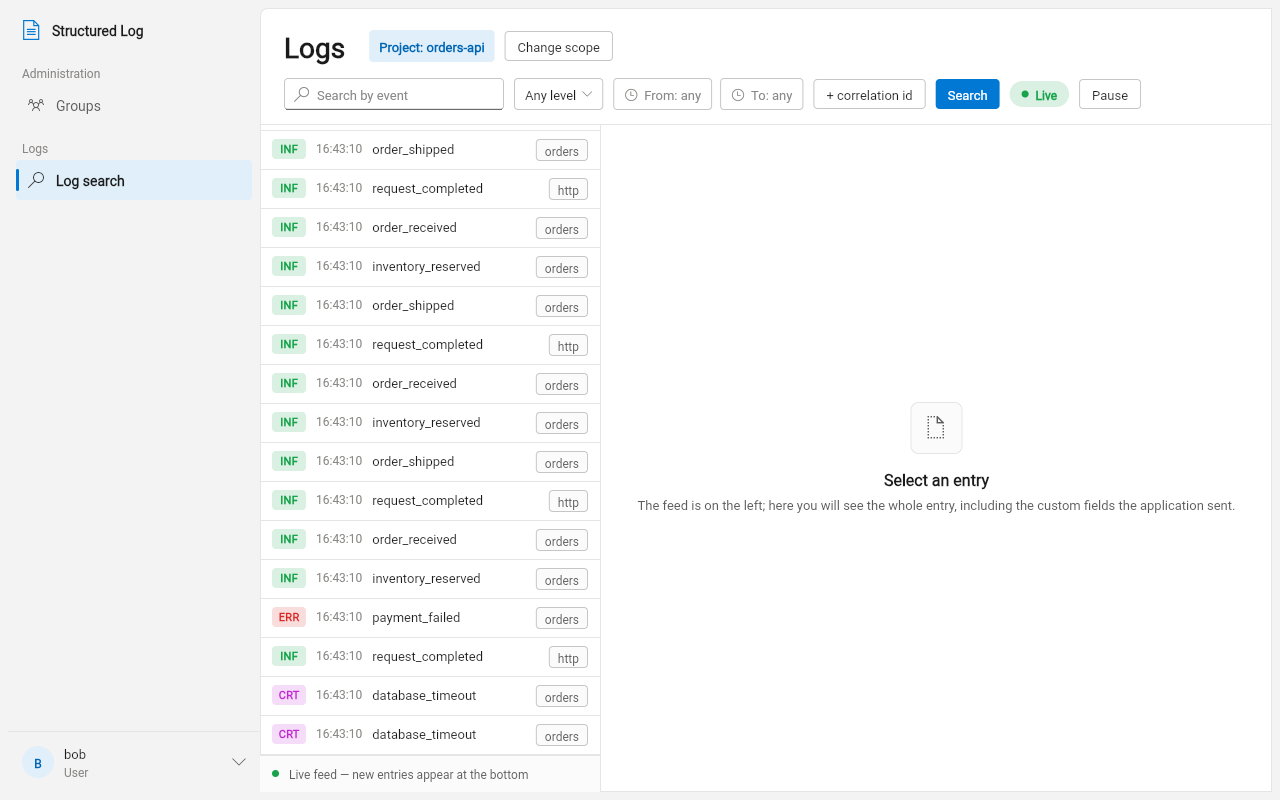
Once a scope is chosen, you get a filter bar above a live, newest-first feed:
| Filter | What it matches |
|---|---|
| Free-text search | The event name and log content |
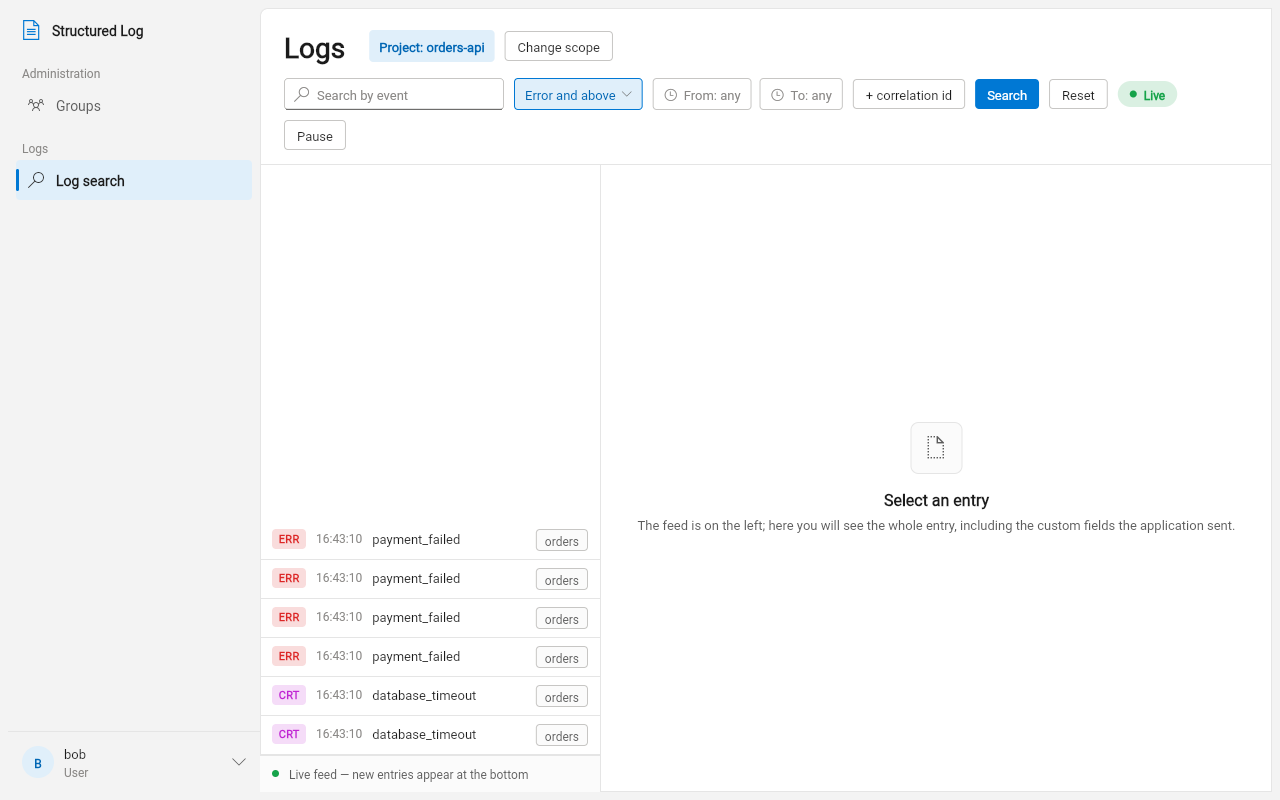
| Level | A minimum severity — debug/info/warning/error/critical — everything at or above it |
| From / To | A time range |
| Correlation id | Session, request, or another correlation field a developer attached when logging — click “+ correlation id” to add one |
Filters combine (AND, not OR): setting a level and a time range narrows by both at once. Clearing a filter widens the results again immediately — there’s no separate “Apply”/“Reset” round trip beyond the “Find” button that runs the search.
Setting the level filter to “Error and above” narrows the same feed to only what needs attention:
Reading one entry
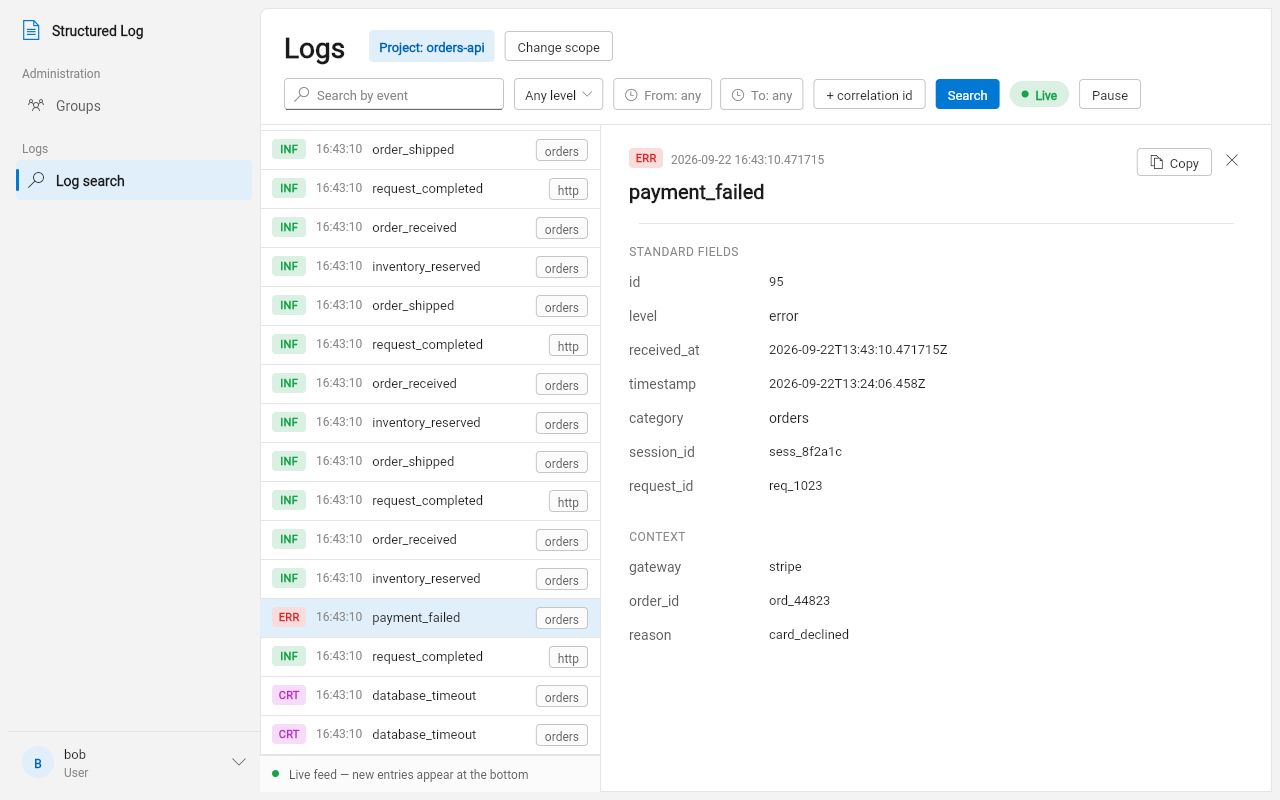
Section titled “Reading one entry”Click any row in the feed to open its full detail on the right: the standard fields (level, timestamp, when the server received it) and, below them, every custom field the application attached when it logged that event — whatever an engineer chose to include (an order id, a user id, an error code, …). Nothing is truncated or hidden; if a field was sent, it’s here. A “Copy” action puts the whole entry on your clipboard as JSON, handy for pasting into a bug report or a chat thread.
Live tailing
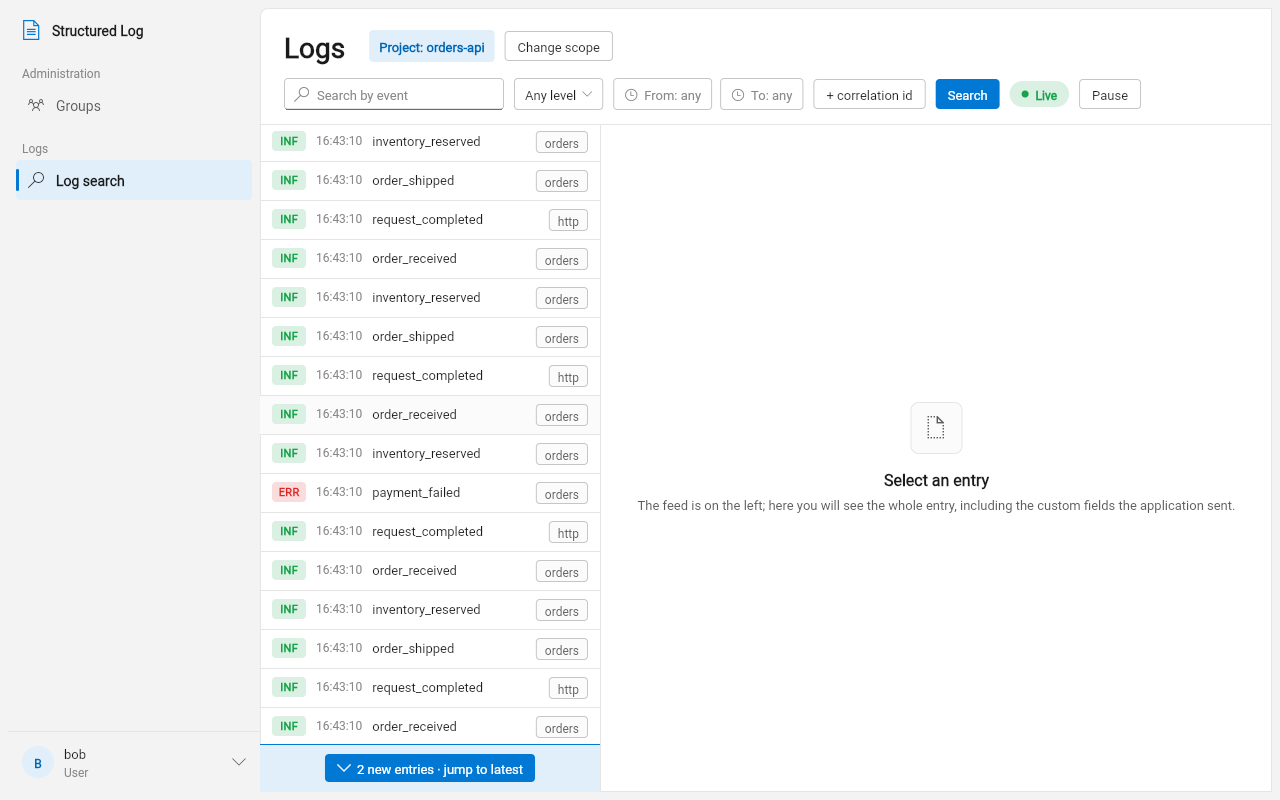
Section titled “Live tailing”The green “Live” indicator means new entries matching your current filter appear at the bottom automatically as they arrive — no manual refresh. Two independent things to know:
- Scrolling up to read history doesn’t fight you. If you scroll away from the bottom to read older entries, new arrivals don’t yank you back down; instead a small “N new” badge appears. Tap it when you’re ready to jump back to the live edge.
- “Pause” stops the visible list from updating at all (useful while you’re reading something and don’t want the list to shift under your cursor), while still collecting what arrives in the background — tap “Resume” to catch up.
Changing any filter or the scope closes the live connection and opens a fresh one under the new criteria — you’re never watching a stale mix of old and new filters.
If you’re an owner or admin: managing groups and projects
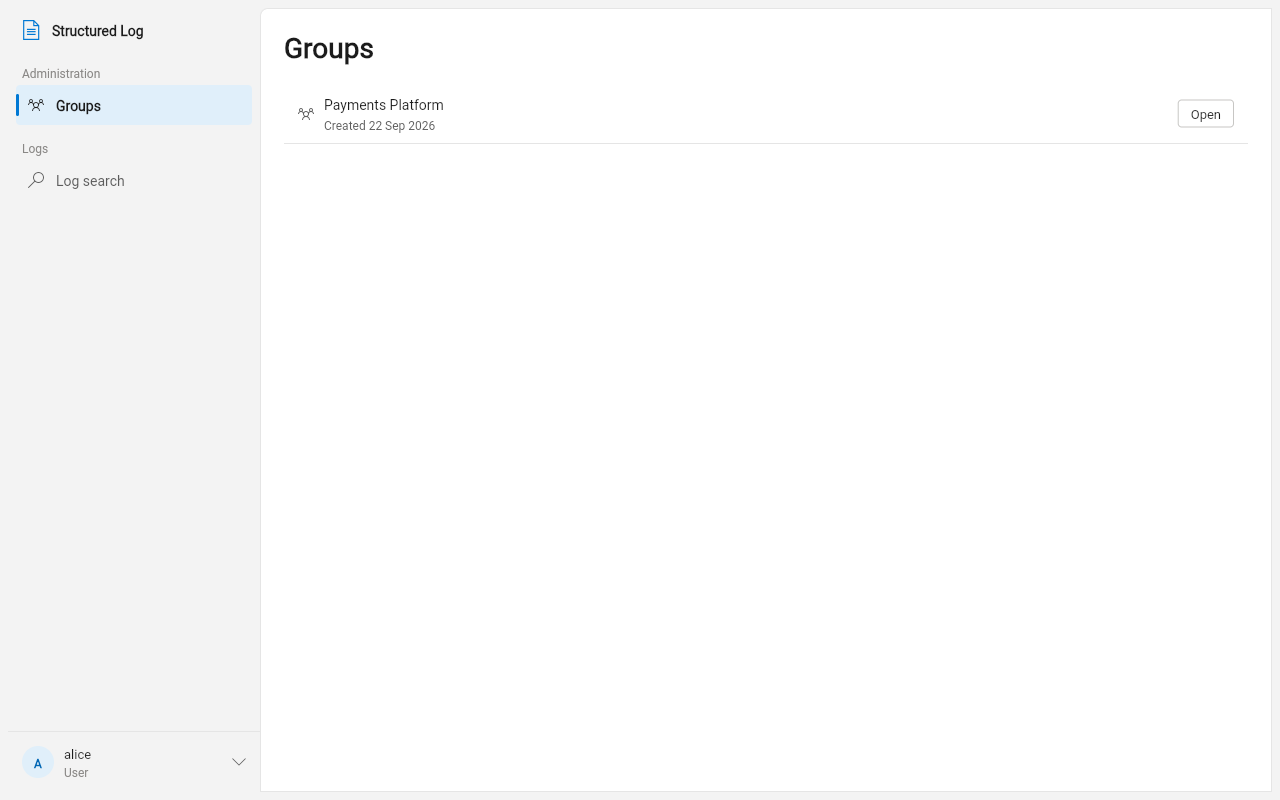
Section titled “If you’re an owner or admin: managing groups and projects”An owner sees only the groups they were granted; here’s the same
Groups screen for an account that owns exactly one:
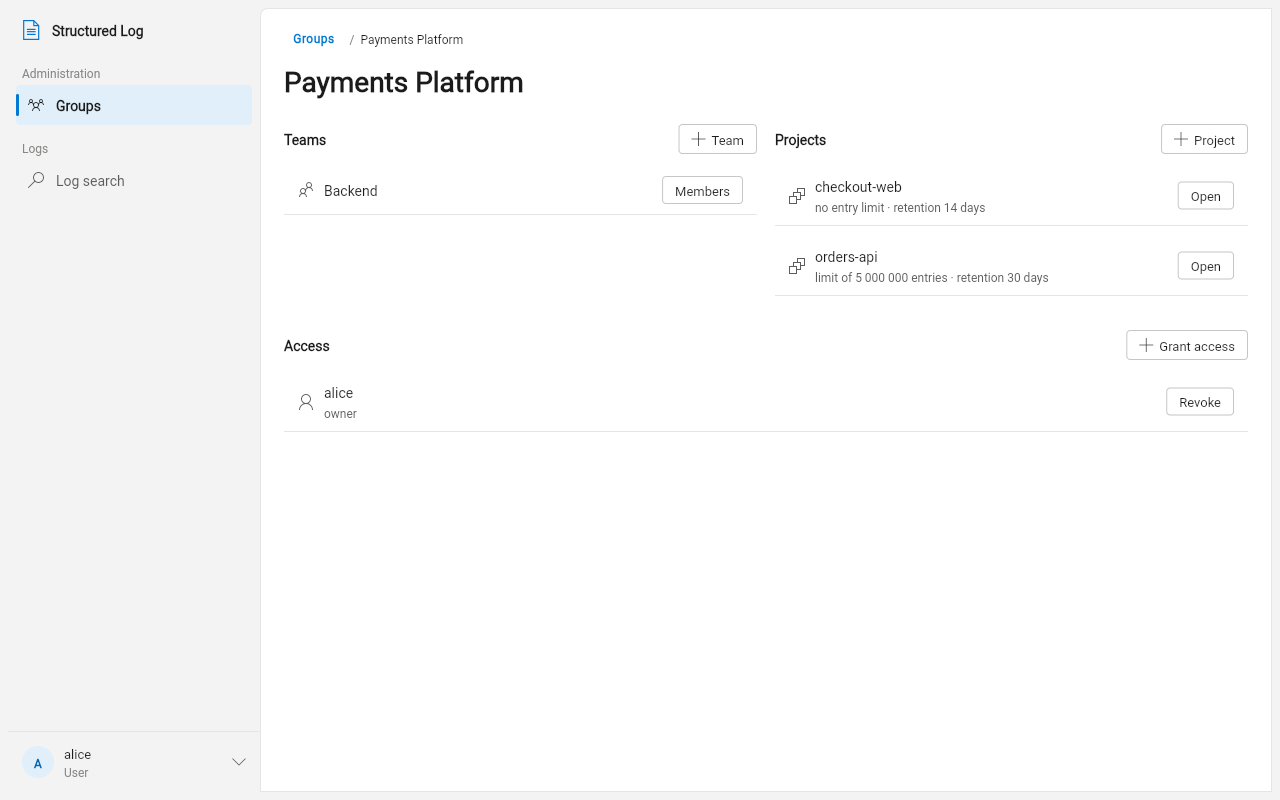
Open one to see its projects, teams, and (for admin) who has access
to it:
From there:
-
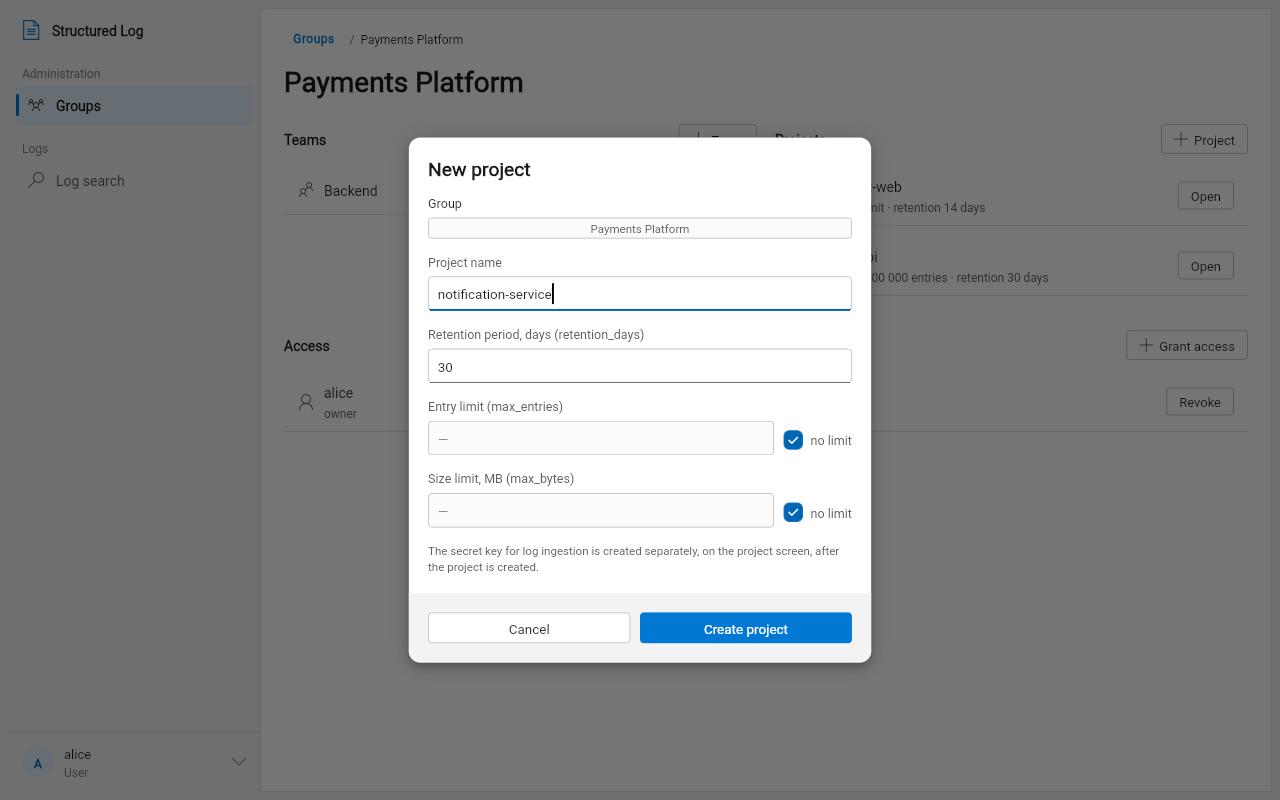
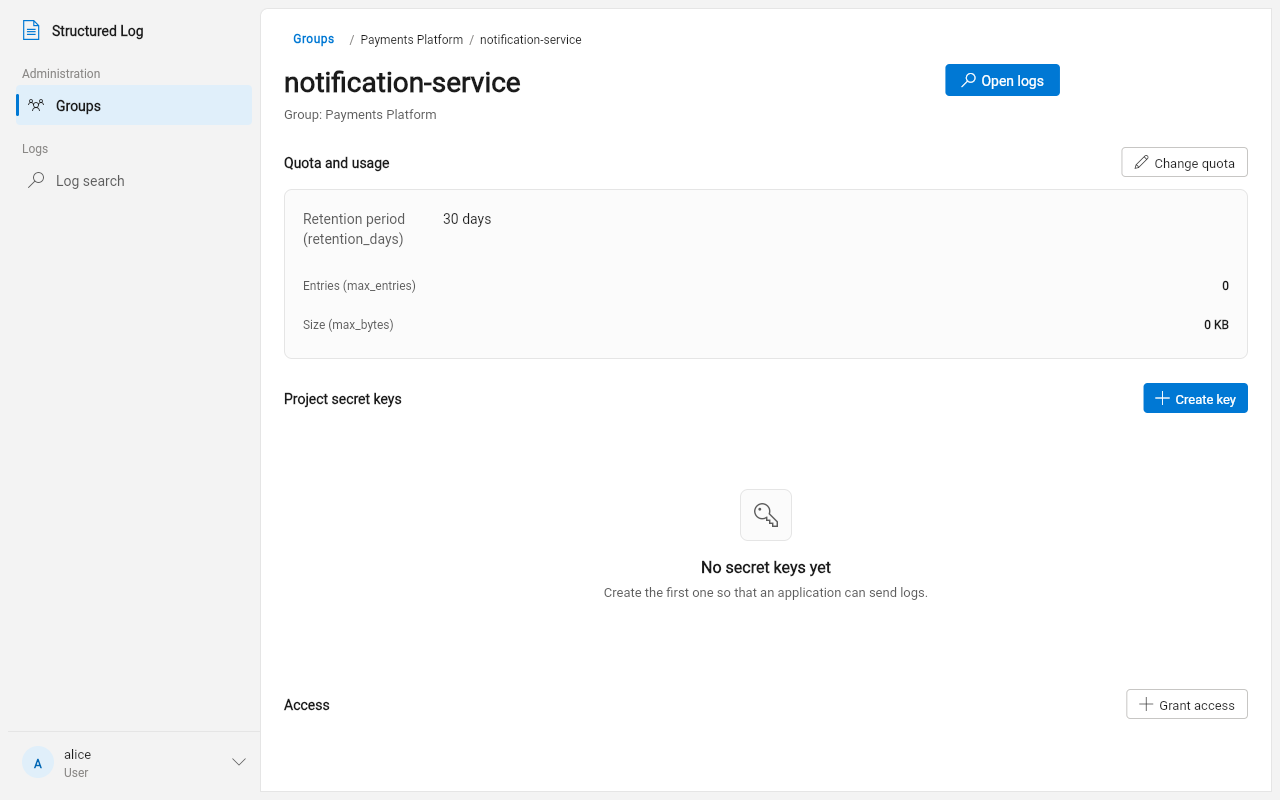
Create a project inside the group — it needs a name and a retention period (how many days its logs are kept before being automatically deleted; every project must have one). Optionally cap it by entry count and/or total storage size — leave either blank for no limit on that dimension.
-
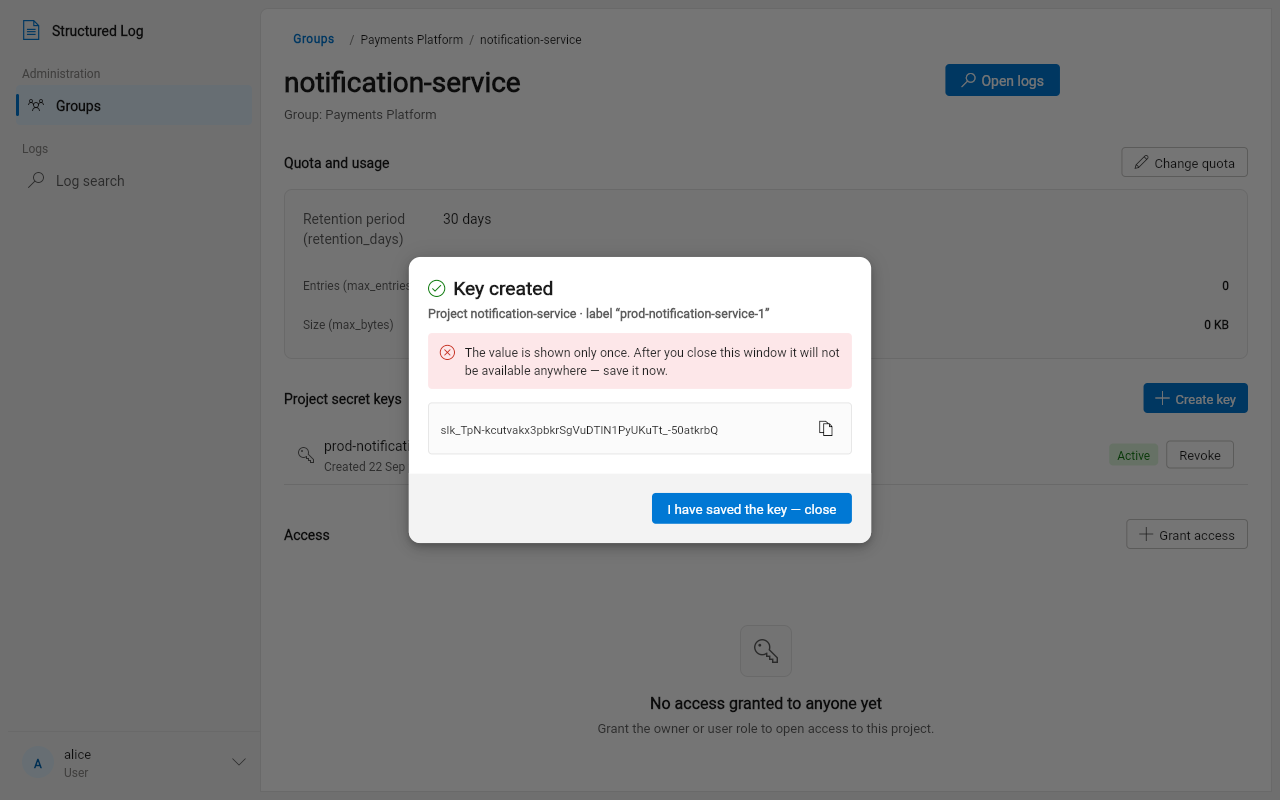
Rotate secret keys — a project’s secret key is what an application uses to send logs to it (see the Developer Guide). A new key’s value is shown exactly once, at creation — copy it immediately, there’s no way to retrieve it again afterward. Revoking a key is immediate and irreversible; any application still using the revoked key starts getting rejected right away.
-
Grant access — pick a person (or a team, if your role reaches
admin’s team-management surface) and a role, scoped to this group or to one specific project inside it. The recipient field searches as you type.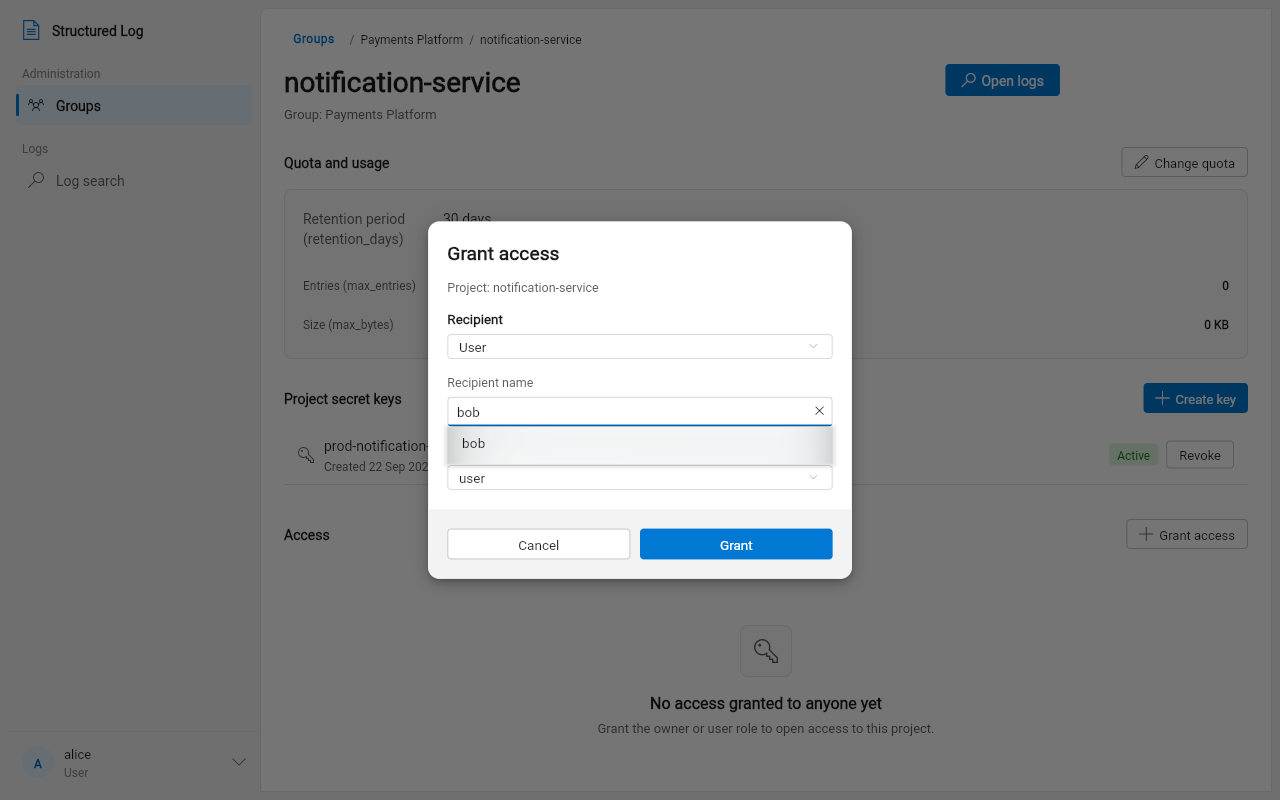
-
Create a team (within a group) to grant access to several people at once, instead of one grant per person — add or remove members and everyone’s access updates together.
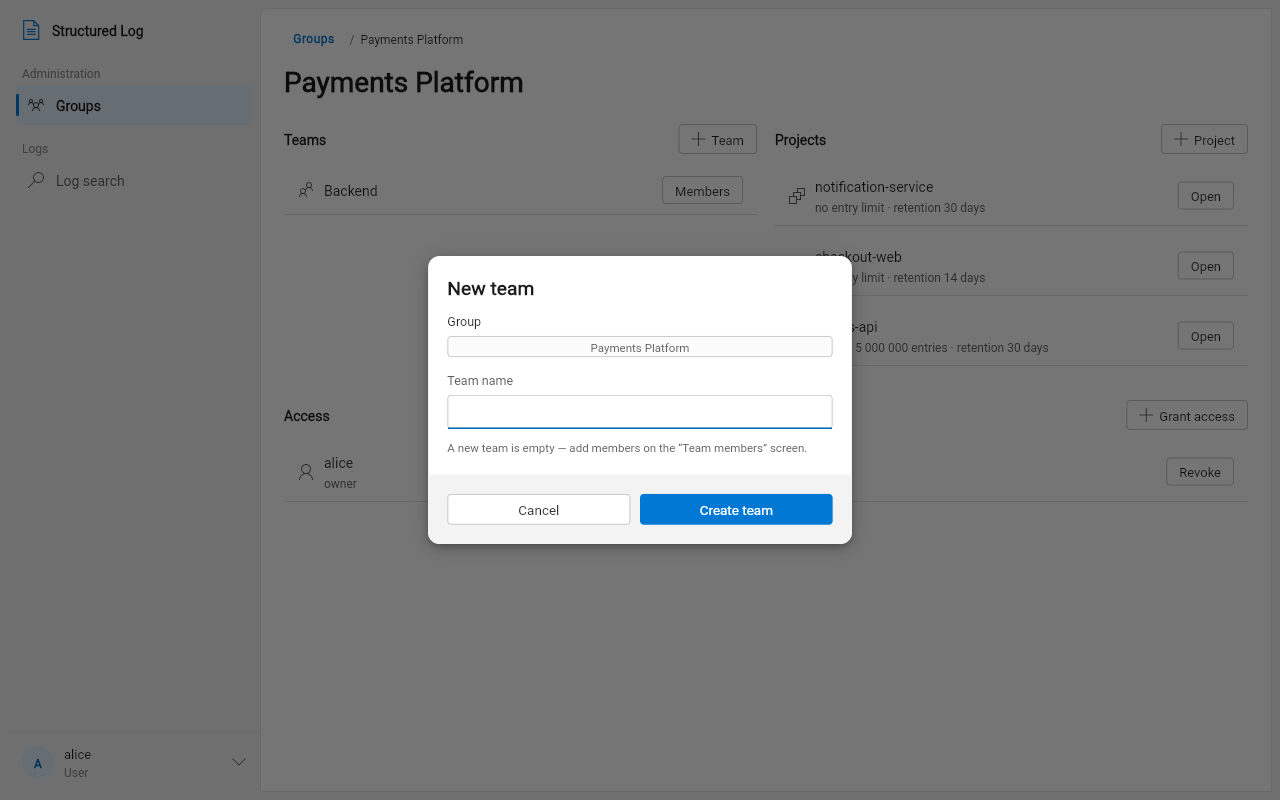
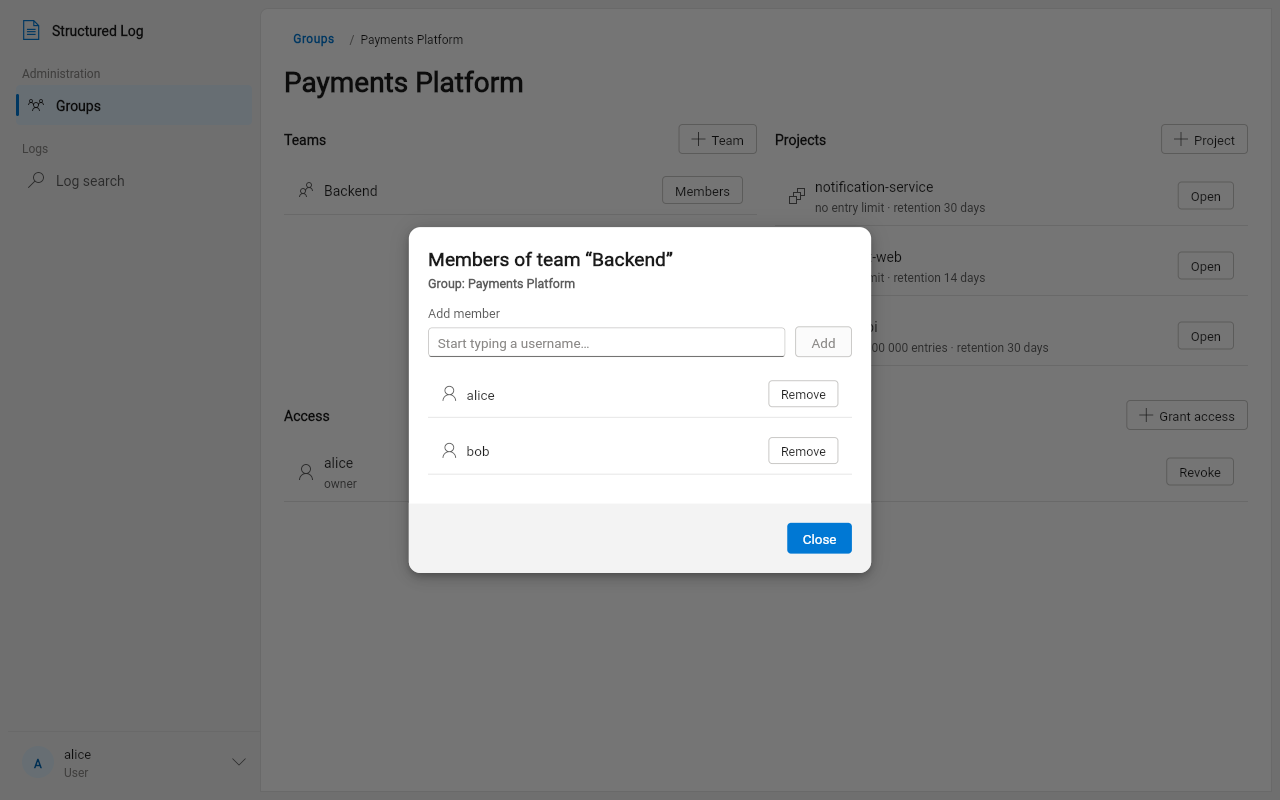
Editing a project’s quota takes effect immediately; it doesn’t touch data already stored, only what happens going forward.
If you’re an admin: users and the audit log
Section titled “If you’re an admin: users and the audit log”Users lists every account on the server. An account with a temporary, not-yet-changed password is flagged right in the list:
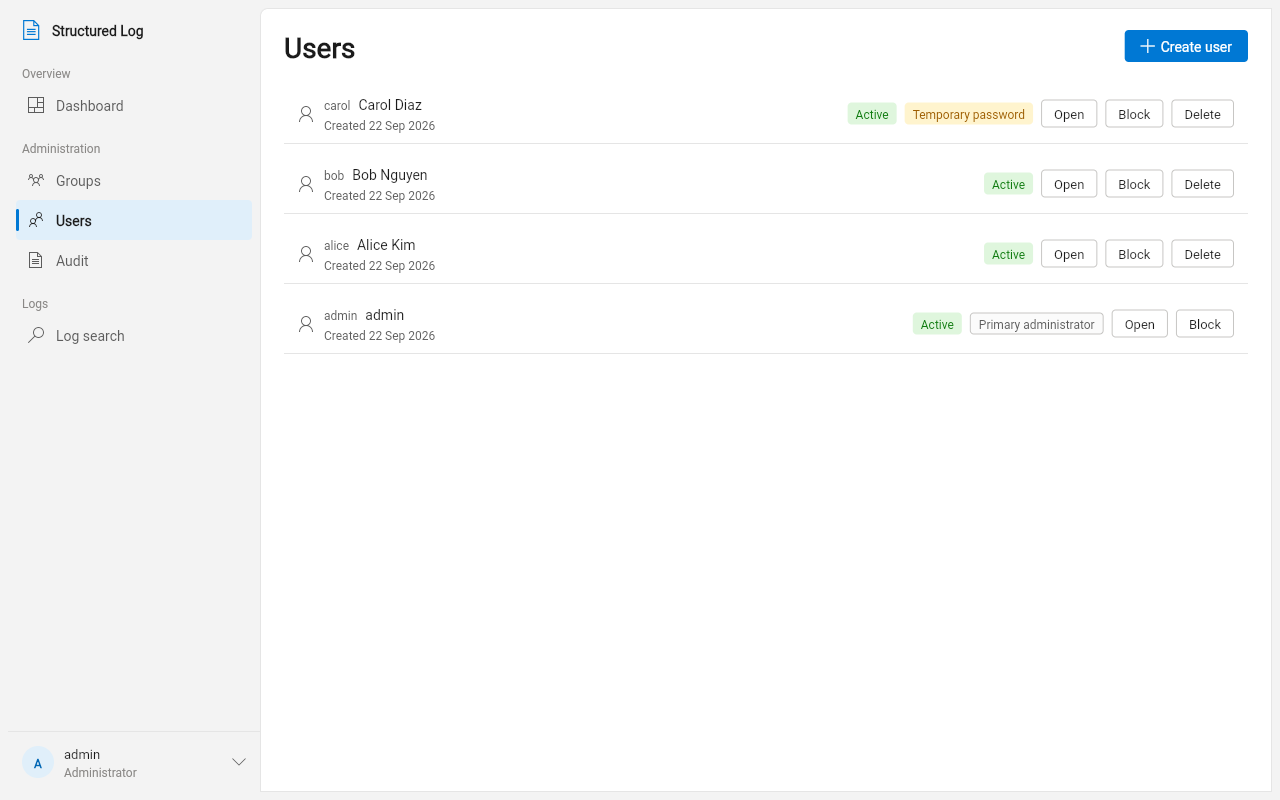
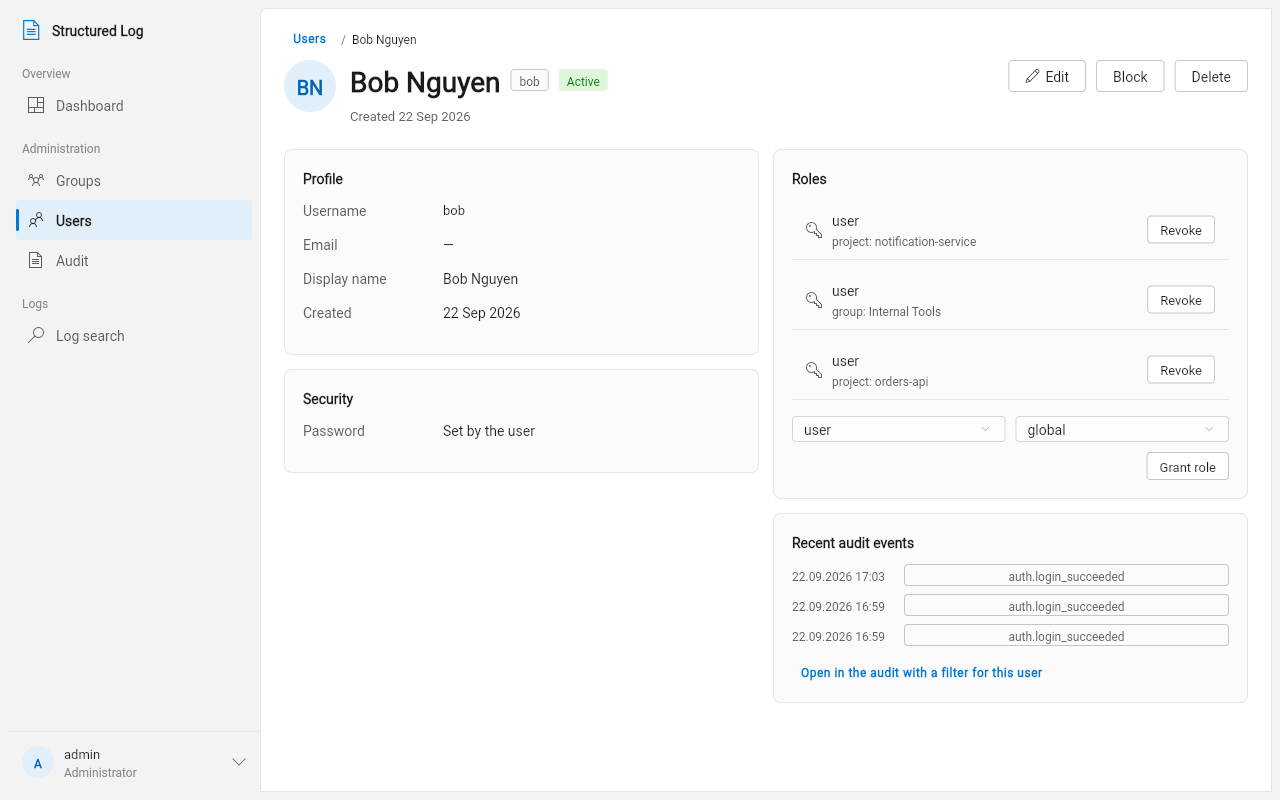
Open one to see their profile, current roles, and recent activity, and to:
-
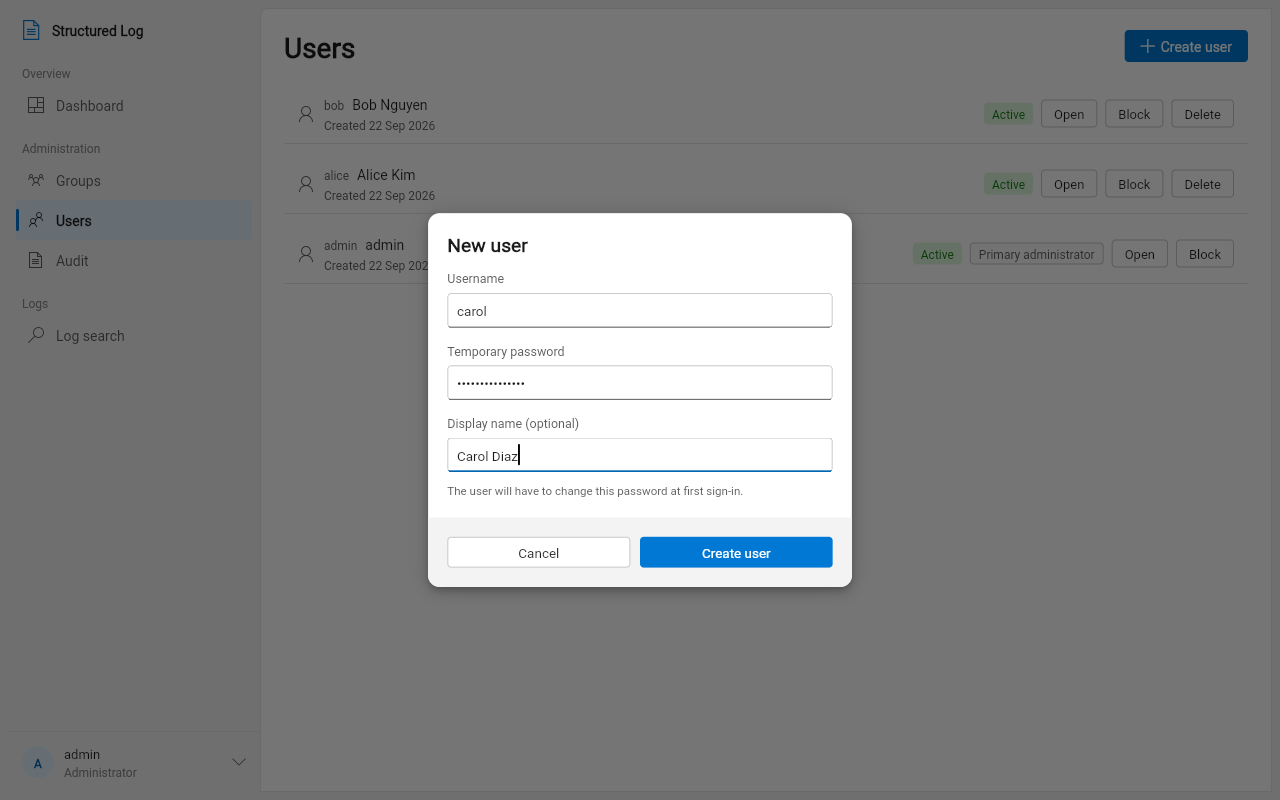
Create an account — username and a temporary password (you set it, or leave it to be generated); the new user goes through the same forced password-change step you did on your own first sign-in.
Once open, a user’s own screen shows their granted roles side by side with their most recent audit events — no need to cross-reference a separate screen to see what someone with access has actually been doing:
-
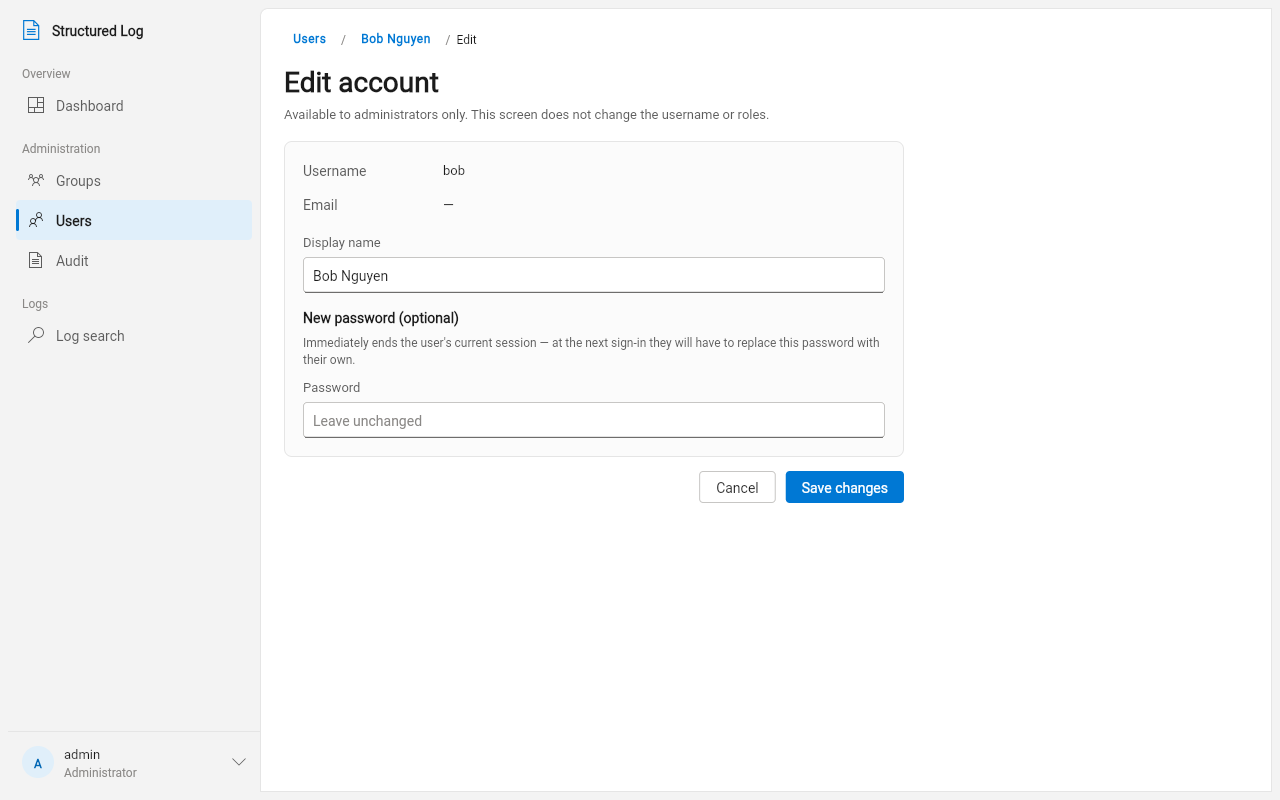
Edit display name or reset their password (also always forces a change on their next sign-in — there’s no way to set a password an admin sets as “permanent” on someone else’s behalf).
-
Block / unblock — reversible. A blocked account can’t sign in or use an existing session at all, but nothing about the account is removed; unblocking restores it exactly as it was.
-
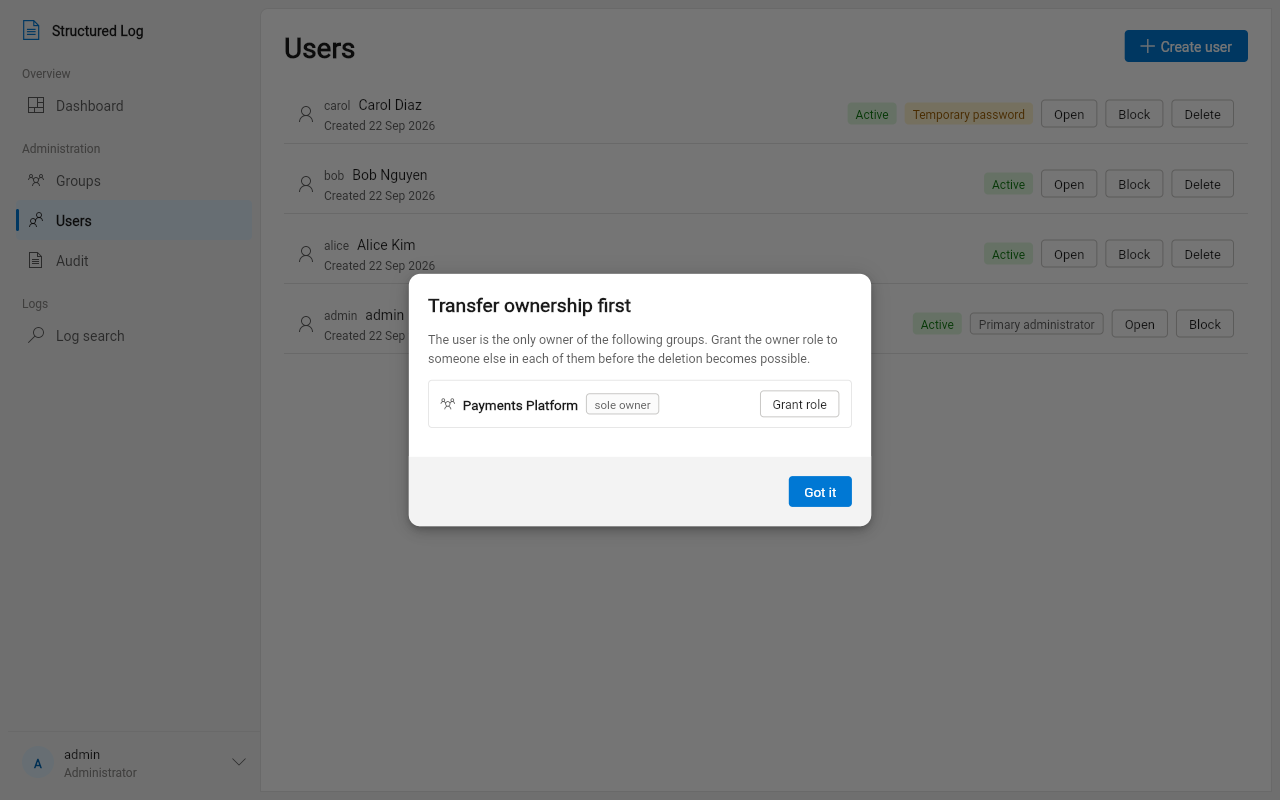
Delete — not reversible; there’s no “undelete.” Two situations are deliberately protected against by the system itself, not left to you to remember:
-
You can’t delete someone who is the sole owner of a group — the app tells you which group(s) block the deletion and offers to grant ownership to someone else first, right there.
-
The account that was the very first administrator created on this server can never be deleted (though it can still be blocked). This is intentional — it guarantees the system can never lock everyone out permanently.
-
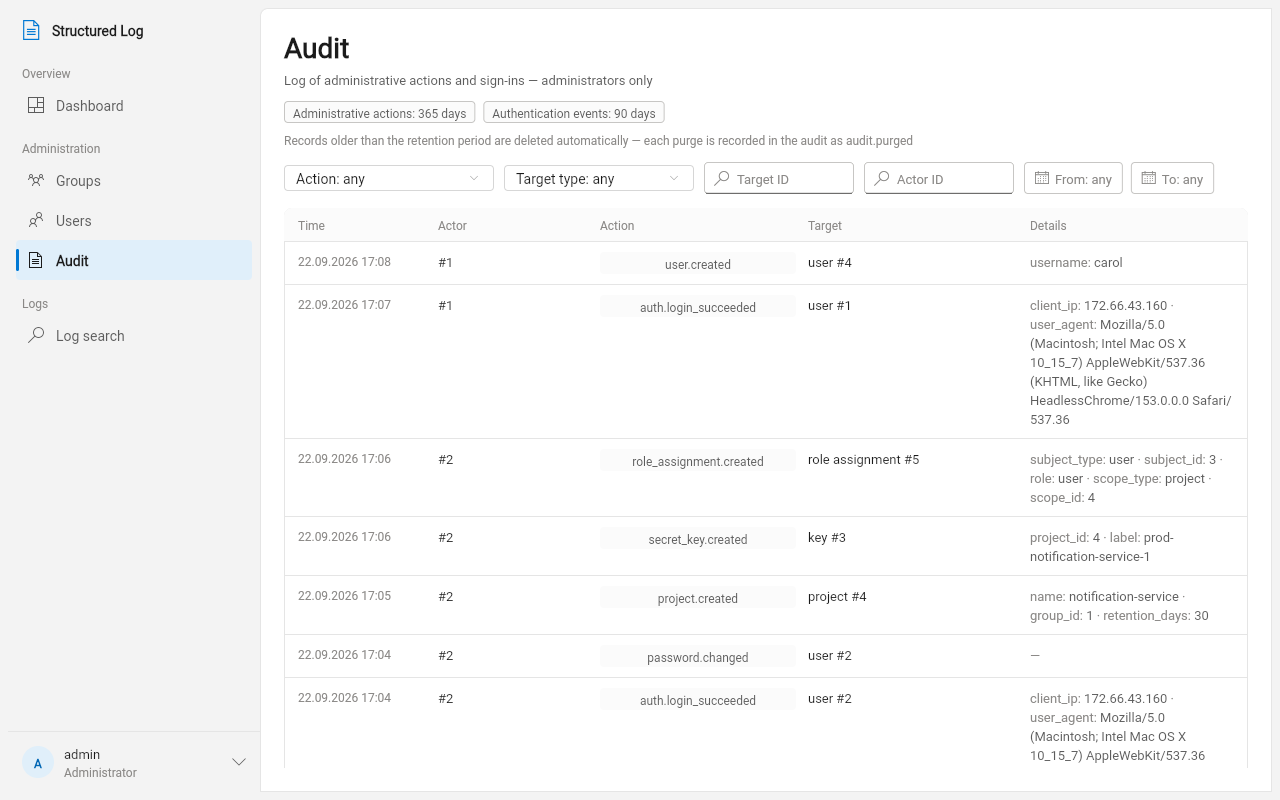
Audit is a single, filterable log of every administrative action taken on the server — who created what, who was blocked or granted a role, and every sign-in attempt (successful, failed, or throttled) — in one place, so investigating “what happened to this account” doesn’t mean cross-referencing several screens. It is read-only by design: there is no way to edit or delete an entry, from this screen or any other — an administrator is a subject of this log, not its owner.
Filter by who did it, what kind of action, what it was done to, or a time range. Records eventually age out according to a retention period your server operator configured (shown at the top of the screen) — or are kept forever if none was set.
Account settings
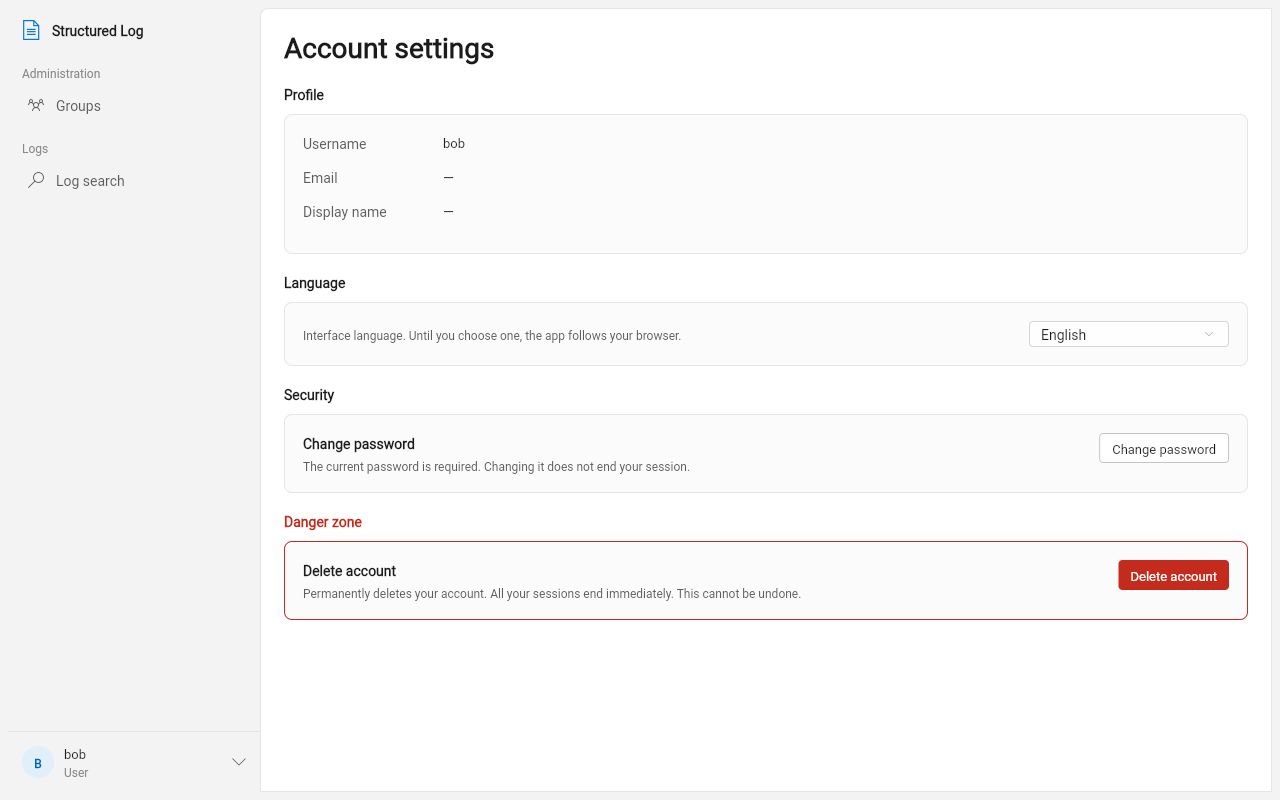
Section titled “Account settings”From your account menu: change your own password at any time (not just when forced to), and switch the interface language between English and Russian — the choice is remembered in your browser for next time. Two language links also appear on the sign-in and forced-password-change screens themselves, for before you’re signed in at all.
Getting help
Section titled “Getting help”If something in the app refuses an action with a message you don’t understand, that message is deliberately specific — copy it exactly when asking an administrator for help; it names precisely what was rejected and often why. If the app itself seems unreachable (not just “nothing found,” but the whole page failing to load), that’s a server or network issue outside the app — check with whoever operates it (see the Administrator Guide).